Invoicing & payments
Generate invoices automatically and collect payments at checkout.
On this page
Everything on this page assumes your plan includes invoicing. That's Operations and Practice, not Intelligence. Chartling's tiers aren't a strict ladder: Intelligence is the clinical AI layer on top of your existing PIMS, so it deliberately doesn't duplicate your billing system. On Intelligence, charges still get captured in the SOAP for reference, but finalizing doesn't draft an invoice, send reminders, or auto-advance an appointment to checkout. Bill through whatever system you already run. Upgrade to Practice for Chartling to run the money side of the practice too.
The SOAP-plan flow below is the clinical path (Practice, since Intelligence doesn't invoice). A pure Operations clinic (no vets on staff) never has a SOAP note to finalize at all: its invoices draft automatically when a grooming appointment, boarding stay, or daycare session is checked out/finished, using that module's own rates. Same invoice, payment, and refund tooling either way, with a different trigger for when the draft appears.
-
Charges are captured during the visit
Every service, medication, and procedure added to the SOAP plan automatically becomes a line item on the pending invoice. There's nothing separate to enter. The clinical record and the financial record are the same document until finalized.
You can also add ad-hoc charges (boarding, lab fees, retail) directly to the invoice before finalizing.
-
Review line items before finalizing
Open the Invoice tab within the visit. Review all line items, quantities, and prices. Edit any item. Adjusting a quantity here adjusts the invoice only, not the clinical record. Apply any discounts.
-
Finalize the visit to generate the invoice
Click Sign & finalize visit. This signs the SOAP note and seals the visit record, and the invoice is created and assigned an invoice number. Clinical content can be amended but not silently edited after this point (see Amending a signed note).
The invoice is immediately available in the owner portal if they have a portal account.
-
Send the invoice
From the invoice view, click Send invoice to email or SMS the invoice to the client. Or print it for in-person checkout. Payment can be collected in person, or owners can pay through the portal.
-
Record payment
Click Record payment on any open invoice. Select the payment method (card, cash, check, other) and enter the amount. If the client pays in full, the invoice is marked paid. Partial payments are tracked and the remaining balance stays open.
Front desk staff don't have to open the invoice separately to do this: clicking Complete on a ready-for-checkout appointment (Today or the calendar) opens the same charges for review and collects payment in one step. See Completing an appointment.
The invoice list has a single search box: type a client name, pet name, dollar amount ("45", "45.50", or "$1,250.50"), or invoice number and it filters as you type. A client whose name has changed since an old invoice was billed still turns up under the name printed on that invoice.
Taking card payments
To accept card payments and receive direct payouts, connect a payment processor before your first invoice: go to Settings → Payments and connect one. Chartling supports Stripe or Square as your active online processor (Stripe is the default), each with its own guided onboarding to verify your clinic's business details and payout account. Until one is connected, you can still record cash, check, and manual card payments. Connecting a processor is only required for owners to pay by card themselves, whether in person or through the portal.
Stripe is the default and the one to pick unless you have a reason not to. Under the same Settings → Payments page, the Online checkout processor section lets you connect Square instead, for online invoice checkout, recurring memberships, and the in-clinic card reader together (the reader always follows whichever online processor is active). Square support is newer than Stripe's: run a small live transaction after connecting and before relying on it for real payments, and use the page's Check Square go-live readiness button to confirm your credentials and webhook are set up correctly. Switching between Stripe and Square only changes which one is active; the other stays connected in the background, so you can switch back without reconnecting anything.
Estimates
Send a cost estimate to an owner before work begins. Estimates let clients approve a budget before you finalize the invoice.
-
Create the estimate
From any visit or the client record, click + New estimate. Add line items the same way you'd add them to an invoice: services, medications, procedures, and fees. You can include a cost range for each item if the final amount depends on what you find.
-
Send to the client
Click Send estimate to deliver it by email or SMS. The client receives a summary with a total range and a link to review the breakdown. You need the
estimate.sendpermission to do this. -
Client approves
The owner reviews and approves the estimate in the portal (or verbally, which staff can record by marking it approved in the app). Approval is logged in the audit trail.
When you finalize a visit, any approved estimate for that visit converts to the draft invoice automatically. You can still add or remove line items before the invoice is finalized.
Discounts
Applying a manual discount to an invoice needs one of two permissions, tiered by size:
| Discount size | Permission required |
|---|---|
| Up to 10% | invoice.discount.under_10pct (or invoice.discount.over_10pct, which covers it) |
| Over 10% | invoice.discount.over_10pct |
A discount applied automatically by a membership benefit or a promotion is not gated by these permissions when it's created (see below); removing one that a system applied is, at the same 10% threshold, so a front-desk override can't quietly waive an amount above what that person could apply by hand.
Standing client discounts
For a discount that should apply every time, not just on one invoice (a senior discount, a multi-pet discount, a staff-friend or rescue partner rate), use the Discounts and promotions card on a client's or patient's record. Scope it to the client's whole account, one pet, one membership, or one booking, as a percentage or a flat amount, with an optional start and end date. Set it to Automatic on new charges to have it apply on its own, or Offered, staff apply to make it available for staff to pick when it's relevant. Automatic discounts apply on their own only when scoped to the whole account or one pet; membership- and booking-scoped discounts are always staff-applied. Creating or editing one uses the same size-tiered permission from the table above (invoice.discount.under_10pct / invoice.discount.over_10pct), plus invoice.write. On the invoice, a line discounted this way shows the percentage or amount taken off like any other discount; unlike a membership or promotion discount, it isn't called out with its own badge on the line item today. See Clients.
Memberships & promotions
Recurring service plans (Settings → Packages & wellness plans) let a client pay a monthly or annual fee for one or more benefits per billing period:
- Included visits: a set number of daycare, training, or grooming visits per period, counted down automatically at check-out
- Percentage off: a standing discount on a service line, applied automatically at check-out
Staff can start an enrollment from a patient's chart, or turn on Offer in the client portal for a plan (under Settings → Packages & wellness plans) so owners can browse it and enroll a pet themselves. Either way, the client completes a hosted checkout with whichever payment processor your clinic has connected, Stripe or Square, reusing a card already on file with that processor where one exists; the plan shows pending until checkout completes. Promotion codes work the same way but stand on their own, independent of a membership: a promotion's scope can be limited to memberships, to invoices, to online bookings, or set to apply to either memberships or invoices, and redemption is capped at one per invoice.
Clients on a plan
The Billing page lists every client enrolled in a membership or recurring plan under Clients on a plan, with the plan, pet, status, price, start date and renewal. Choose Manage on a recurring service plan (or click the row) to open its panel with Edit, Change plan and Cancel, plus an Open client billing link. A wellness plan opens the pet's chart Billing tab instead, where wellness enrollments are managed.
- Cancel asks how to end the plan. End at renewal refunds nothing; the client keeps their included days until the period ends, then billing stops. End now and refund ends it today, refunds the unused part of the billing period to their card, and removes the remaining included days so new bookings are charged. Both need
payment.collect, and the refund option also needspayment.refund. - End now, full credit appears when a client has switched to a newer plan for the same pet or household. Pick the new plan; the old one ends today with no card refund (the credit is the refund), visits from the day the new plan started move onto the new plan, and earlier visits stay on the old one. The confirmation lists any visits that did not fit on the new plan so you can bill them normally. It needs both
payment.collectandpayment.refund.
Refunds
To issue a refund, open the invoice and click Refund. Enter the refund amount and reason. Refunds can be full or partial. The refund is recorded in the invoice history and reflected in billing reports.
A membership or wellness plan bills separately from one-off invoices, so its charges are refunded from the enrollment itself rather than from an invoice: open the patient's membership or wellness plan panel to see its billed cycles and refund one directly, without leaving Chartling for your Stripe or Square dashboard.
Voiding, archiving and deleting
Void (permission invoice.void) cancels a sent invoice without deleting it; it stays on the client's record at $0 due. From a voided invoice, staff with invoice.write can Archive it to tidy it out of the default list without removing it (and Restore from archive to bring it back). Staff with invoice.void can permanently Delete a voided invoice, but only if nothing was ever paid against it; once a payment exists, the record has to stay as a void, not disappear.
If a household has multiple pets, all invoices appear on the household's account. Refunds for any pet in the household are visible to the owner in the portal under their account balance.
When a client has two or more unpaid invoices, a Combine N unpaid invoices button appears on their record. Combining moves the charges from the invoices you pick onto the oldest one, grouped by pet, and voids the others with a note pointing to where their charges went, so the client gets one bill instead of several. Requires invoice.write and invoice.void.
Insurance claims
On the Practice tier, invoices can carry a linked insurance claim (e.g. Trupanion) that tracks status through your billing workflow: draft, submitted, partially paid, paid, denied, or closed. This is a claims-tracking and reconciliation workflow inside Chartling, not an automated wire integration to the insurer: submitting a claim records it as sent and lets you log the insurer's response as it comes back, rather than filing it through a live API. Requires the billing.insurance_direct permission.
Payment plans & financing
On the Operations and Practice tiers (feature payment_plans), an invoice can be split into a payment plan of scheduled installments instead of one payment in full. Creating a plan, marking an installment paid, or cancelling a plan all use the payment.collect permission, the same one used to record any other payment.
Separately, you can record a third-party financing offer against an invoice (CareCredit, ScratchPay, Pumpkin Pay, Affirm, Wisetack, VetBilling, or another provider) noting the approved amount, a reference code, and its status (pending, approved, declined, funded, or refunded). Like the insurance-claims workflow above, this is a tracking record inside Chartling, not a live application through the provider's API: the owner still applies with the financing company directly. Recording or removing a financing offer requires the billing.financing permission.
Billing reports
Go to Analytics in the sidebar (Operations and Practice tiers, feature analytics) to view revenue by date range, provider, service type, or payment method. Export the dashboard as CSV or XLSX for your accountant or billing software.
| Report | What it shows |
|---|---|
| Daily summary | Total collected, outstanding, and refunded for a given day |
| Outstanding balances | All open invoices with amount due and age |
| Revenue by provider | Charges and collections broken down by veterinarian |
| Revenue by service | Which services and products drive the most revenue |
A/R aging
To see who owes you and for how long, open Billing, choose the Transactions tab, then A/R aging (Operations and Practice tiers, feature invoicing, permission report.financial.view). You can also click Outstanding balance on the Clients page.
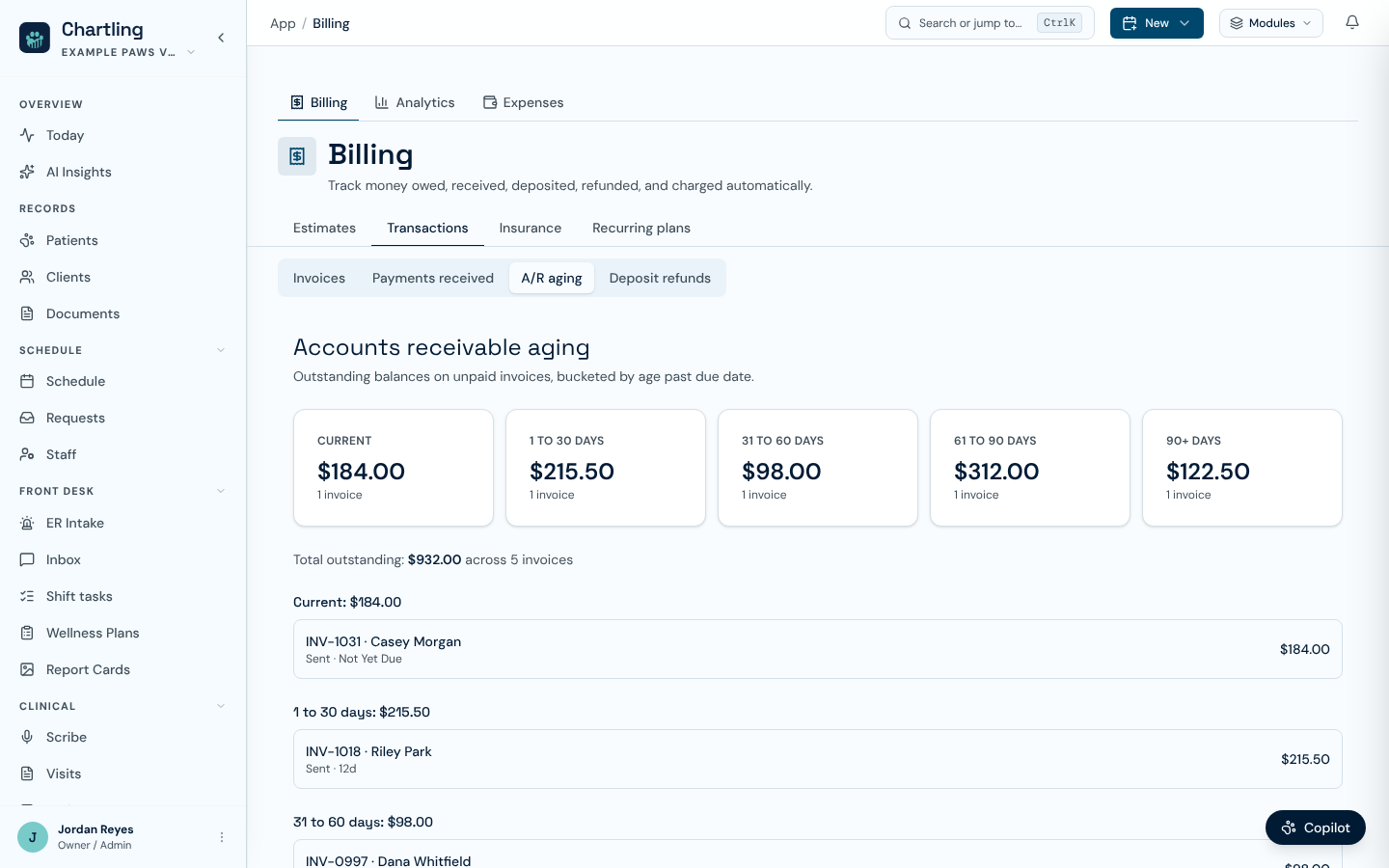
A/R aging (sample data)
It looks at invoices that are sent or still draft and have a balance. The balance is the invoice total minus what has been paid, and the age counts days past the due date. If an invoice has no due date, the sent date is used, then the created date. Invoices are sorted into five buckets, each with a count and a dollar total:
- Current: not yet past due
- 1 to 30 days, 31 to 60 days and 61 to 90 days past due
- 90+ days
Below the buckets, Total outstanding adds them up, and each bucket lists its invoices, oldest first, with the client's name. Click a row to open that invoice.
Income statement & operating expenses
The same Analytics page has an Income statement panel: revenue by category, inventory COGS, a Payroll line, and operating expenses through net income, on a cash basis, for the same date range as the dashboard above it. Export it as CSV or XLSX with the CSV/XLSX buttons next to it (permission report.financial.view, feature analytics).
Revenue and inventory COGS populate automatically from your invoices and dispensing records; the bottom line only reaches true net income once you record the expense side. Go to Expenses in the sidebar (permission expense.write to add/edit/delete; viewing reuses report.financial.view) to log rent, utilities, insurance, marketing, supplies, equipment, professional fees, and other overhead by date and category. Each entry feeds directly into the income statement's expense lines.
The Payroll line is computed automatically once your clinic has entered per-employee pay under Settings → Staff pay (owner/admin only, permissions staff.comp.read / staff.comp.write; see Team & permissions): it multiplies each hourly employee's rate by their clocked hours for the period and prorates each salaried employee's annual pay by days, then totals it. It's an estimator, not payroll processing, so it applies no taxes, withholding, or overtime/shift-differential rules. Until compensation is recorded for at least one staff member, the Payroll line instead falls back to whatever you've logged manually under an expense category named "Payroll" in Expenses, so it isn't double-counted once real comp data exists.
If you'd rather have your daily revenue post straight into your books instead of exporting it by hand, see QuickBooks accounting, a separate tool that maps charge codes and payment methods to QuickBooks accounts and posts each day as its own journal entry.
FAQ
The invoice is created when you finalize the visit. Before that, line items are in a "pending" state on a draft invoice. You can see and edit the draft invoice at any time during the visit, but it doesn't have an invoice number until finalization.
Yes. Click Record payment and enter the amount for the first method. Repeat for additional methods. Partial payments are tracked cumulatively until the invoice is paid in full.
Yes. Open the invoice and click Add line item. A supplemental charge is added to the existing invoice, and the total is updated. This creates an audit entry noting who added the charge and when.
Yes. Owners can pay invoices directly from the portal using the Pay link on their invoice. Payment is recorded automatically and the invoice status updates to paid.
Charged, paid, due and deposits
- Every invoice row shows Charged, Paid and Due. Void and refunded invoices show $0 due.
- Draft, not sent means the invoice can still be edited and the client hasn't received it.
- A booking deposit appears once as a payment. Its matching record is labelled Deposit receipt with its invoice number, and the deposit is applied to the final bill.
- No surprise charges: a saved card is only charged when someone presses Charge at checkout. Only memberships and recurring plans bill on their own.
- Recurring plans now have their own tab on Billing.