Team & permissions
Invite staff and give each person exactly the access they need.
On this page
-
Go to Settings → Team & permissions and click Invite by email
Enter the staff member's email address.
-
Select a permission pack
Choose the pack that matches their role. See the Permission packs table below.
-
Set an access expiry date (optional)
For a temporary or relief vet, set a date their access expires automatically. That suits a locum engagement with a known end date. Leave it blank for ongoing staff.
-
Send the invite
The invitee receives an email with a setup link, valid for 14 days. They create their account and are immediately linked to your clinic. If they miss the window, resend the invite from their row in the team list. Resending refreshes the link for another 14 days.
When someone accepts an invite, their account is linked to your clinic organization. They won't be able to access any other clinic's data.
Permission packs
Chartling uses permission packs instead of fixed roles. A pack is a curated set of permissions appropriate for a type of staff member. You choose a pack when inviting; you can adjust it later.
| Pack | Who it's for | Key capabilities |
|---|---|---|
| Vet | Licensed DVMs | Sign and co-sign SOAP notes, amend signed notes, prescribe, dispense & witness controlled substances, full patient record access |
| Associate Vet | Associate or new-grad DVMs | Same as Vet, without co-sign, financial, or admin authority: sign and amend SOAPs, prescribe, dispense & witness controlled substances |
| Vet Tech | Credentialed vet technicians | Start and sign visits (signed notes are held for a vet's co-sign), record vitals, run labs, treatment execution, witness controlled substance dispenses |
| Senior Tech | Lead or senior technicians | All Vet Tech capabilities plus witness and reconcile controlled substances |
| Receptionist | Front desk, client service | Scheduling, check-in, invoicing, client communications |
| Practice Manager | Non-clinical managers | Reports, billing read, inventory operations, audit log view |
| Owner / Admin | Clinic owners, senior managers | Full access including all controlled substance permissions, team management, and billing |
| Read-only Auditor | External reviewers, compliance staff | View-only access to clinical and billing records, with no write access |
| Locum | Temporary or relief vets | Same as Associate Vet: sign SOAPs, prescribe, dispense & witness controlled substances, minus the ability to void a sent invoice |
Controlled substance permissions
Several default packs include controlled substance permissions. The Vet, Associate Vet, and Locum packs include rx.controlled.dispense and rx.controlled.witness. The Vet Tech pack includes rx.controlled.witness. The Senior Tech pack includes rx.controlled.witness and rx.controlled.reconcile. The Owner / Admin pack includes all three. Other packs (Receptionist, Practice Manager, Read-only Auditor) have no controlled substance access by default. Chartling grants permissions through packs, not per-user checkboxes. To give one person controlled substance access, an Admin either assigns them a pack that already includes it, or creates a custom pack with exactly the permissions needed (rx.controlled.dispense, rx.controlled.witness, and/or rx.controlled.reconcile) under Settings → Team & permissions → Permissions and assigns that pack to them.
Because Locum is seeded from the same permission set as Associate Vet, a relief or temporary vet can dispense and witness controlled substances from day one, before you've reviewed their pack. If your clinic wants a relief vet to earn that access separately, clone Locum into a custom pack with rx.controlled.dispense / rx.controlled.witness removed and assign that instead.
rx.controlled.witness isn't reachable on its own todayThe Vet Tech pack holds rx.controlled.witness, but the only screen that acts on it (Inventory → Controlled log) is itself gated on rx.controlled.reconcile, which Vet Tech doesn't hold. In practice, only Senior Tech, Owner/Admin, or a custom pack with both permissions can complete a witness through the app right now. See Controlled substances for the full explanation. If you need a Vet Tech witnessing independently, add rx.controlled.reconcile to their pack (or a custom one) in the meantime.
| Permission | What it allows |
|---|---|
rx.controlled.dispense | Dispense a controlled substance to a patient |
rx.controlled.witness | Witness a controlled substance dispense (must be a different user from the dispenser) |
rx.controlled.reconcile | Run and sign off on the controlled substance reconciliation report |
Seat counts
On Intelligence and Practice, only licensed-veterinarian seats are billed per-vet. Techs, assistants, and front desk are unlimited free seats on every paid tier. Adding a vet increases your subscription; you'll see the prorated charge on your next invoice. Your current seat count is visible in Settings → Plan & subscription.
Staff compensation
Settings → Staff pay holds each staff member's current pay, an hourly rate or an annual salary, restricted to staff.comp.read to view and staff.comp.write to add/edit, which only the Owner / Admin pack carries by default (not even Practice Manager). It's an estimator that feeds the Payroll line on the income statement (see Invoicing & payments); it isn't payroll processing, so it applies no taxes, withholding, or overtime/shift-differential rules, and it's a separate store from the Time clock export below. Compensation is sensitive PII, so unlike financial reports generally, a Practice Manager sees the aggregate Payroll figure on the income statement but never individual pay rates.
Staff schedule & time clock
Staff schedule and Time clock are separate sidebar pages (Operations and Practice tiers, feature scheduling). The schedule is a planned roster of shifts; the time clock is what staff actually clocked. They're deliberately different artifacts, so the schedule doesn't silently become the payroll record.
- Staff schedule (
schedule.readto view,schedule.writeto create/edit shifts): build the planned roster by staff, role, and location. Anyone withschedule.readcan export the current view's date range as CSV or XLSX (one row per shift: date, staff, role, status, start/end, on-call, location, notes) to hand off or print. - Time clock (
timeclock.punchto clock yourself in/out,timeclock.manageto view or correct any staff member's entries): records actual worked hours. A manager withtimeclock.exportcan export a pay period as CSV or XLSX for payroll (Gusto, QuickBooks, ADP, etc.). The export reports worked hours only, with no pay rates and no overtime rule applied, so any punch still open (not clocked out) for the period is excluded and flagged rather than guessed at. (Pay rates entered under Staff compensation above feed the income statement's Payroll line, not this export.)
Staff directory
Staff in the sidebar (Operations and Practice tiers, feature scheduling, permission schedule.read) is the people view of your team. It shares a tab bar with Schedule, Time off and Time clock. The directory lists everyone in the business with their role, access, hours this week and any time-off requests waiting for a decision. Search by name, or click a person to open their profile.
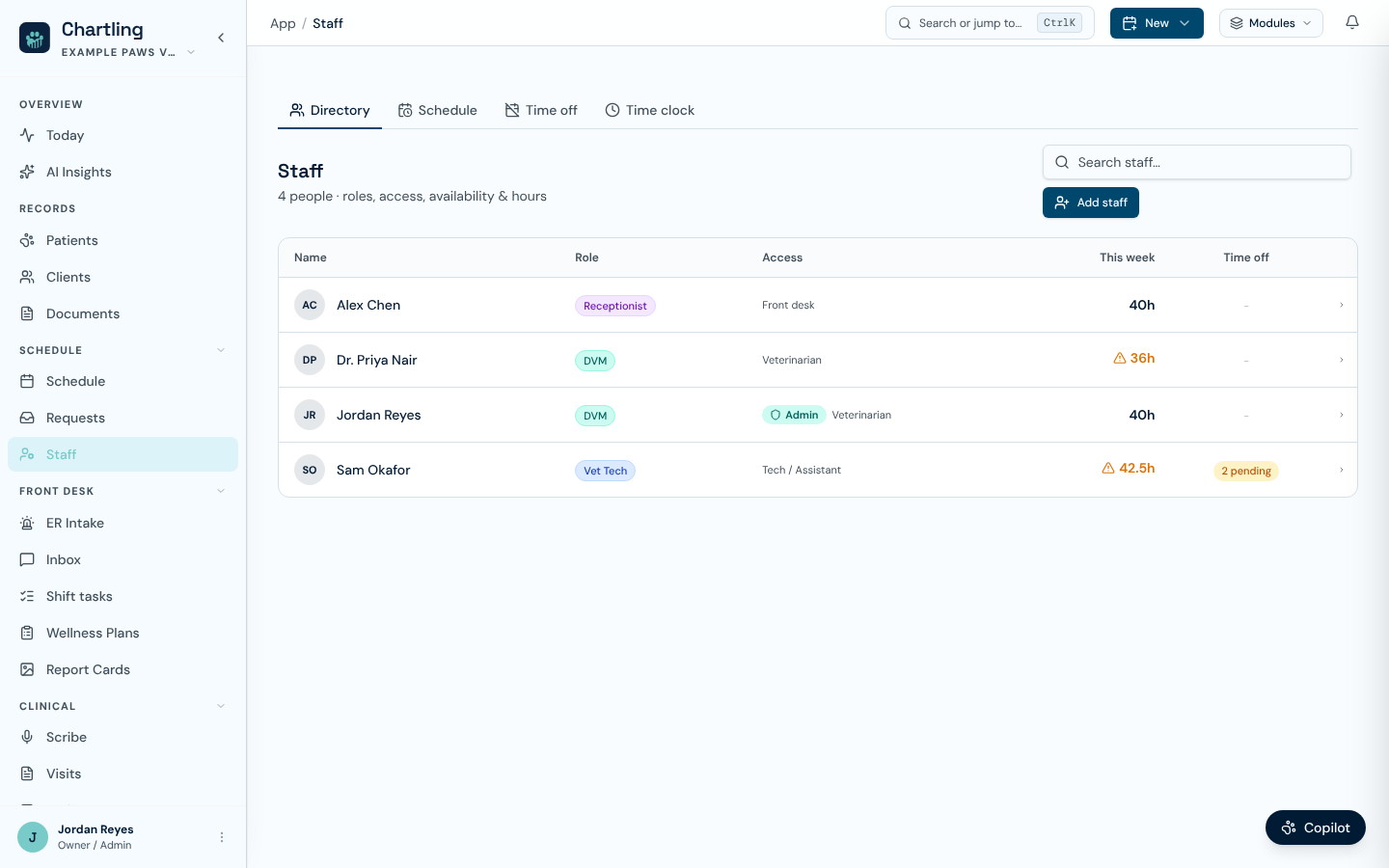
The Staff directory (sample data)
| Column | What it shows |
|---|---|
| Role | The job role used for scheduling, such as Receptionist or Manager. Clinical roles appear only in clinic workspaces, and module roles such as Groomer or Trainer only when that module is on. |
| Access | An Admin badge, and the clinician role if one is set. Everyone else reads Member. |
| This week | Scheduled hours for the current week. The figure turns amber with a warning when it goes over that person's preferred maximum. |
| Time off | How many of their requests are still pending. |
Anyone with settings.users.write also sees Add staff, which opens the same email invite described under inviting.
A staff profile adds this week's scheduled hours, worked hours and upcoming shift count, then the sections Role & preferences, Access, Weekly availability, Upcoming shifts, Time off, Bookable services and Time clock. Role & preferences (role, preferred start and end, maximum hours a week, preferred days, notes) can be edited with schedule.write. Access is read-only here and links to Team & permissions, because roles and packs are changed there. Worked hours are shown only to the person themselves, an admin, or someone with timeclock.manage. Everyone else sees Hidden.
Time off
The Time off tab (Operations and Practice tiers, feature scheduling) tracks vacation, sick days and continuing education so absences stay off the schedule. Anyone on a plan with scheduling can view it. Adding, approving and removing entries needs schedule.write.
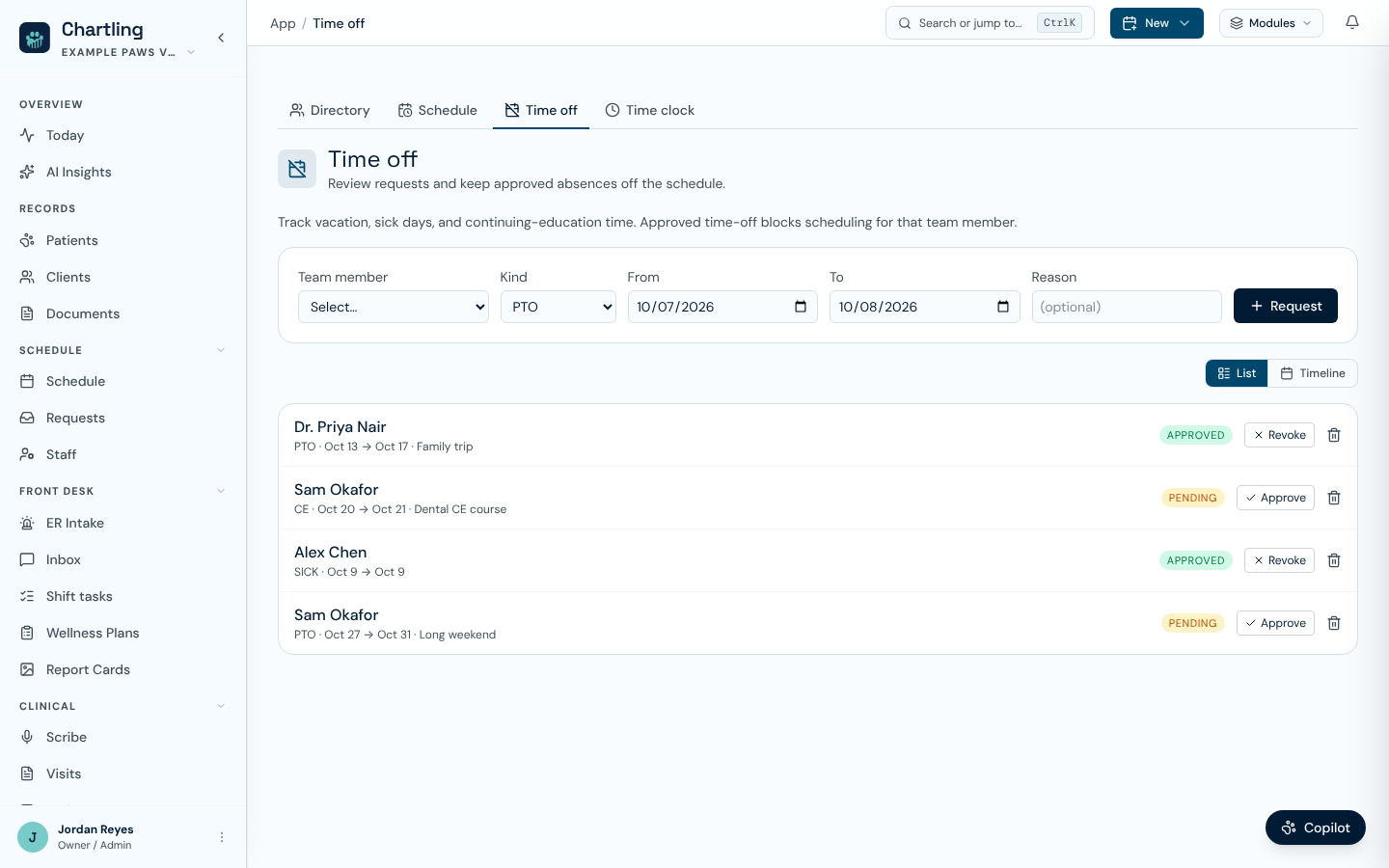
Time off requests, approved and pending (sample data)
-
Add a request
Pick the Team member, the Kind (PTO, Sick, CE or Other), the From and To dates and an optional reason, then click Request. The end date cannot be before the start date. Dates use your clinic's time zone.
-
Approve or revoke
New entries start as Pending. Approve marks one Approved, and Revoke sends it back to pending. Pending entries show on the Staff directory so a manager can see what is waiting.
-
Delete a mistake
The trash button removes an entry after you confirm.
Switch between List and Timeline at the top right. The timeline is a month view with one row per person, green bars for approved time and amber bars for pending, and arrows to move between months. Only approved time off keeps a provider's slots off online booking, so approve a request before you rely on it.
Customizing permissions
Chartling grants access through packs, not per-user checkboxes. There's no individual override screen on a staff member's profile. To give someone access outside their current pack, either move them to a different existing pack, or go to Settings → Team & permissions → Permissions and create a custom pack with exactly the permissions you need (you can clone an existing pack as a starting point), then assign that pack to them. Changes take effect immediately. The user doesn't need to log out.
Removing access
To remove a staff member, go to Settings → Team & permissions, find their row, and deactivate their account. Deactivated users can't log in. Their records (SOAP notes they signed, actions they took) are preserved. Removing a user does not alter the audit trail.
Transfer any unsigned visits or pending items before deactivating. Unsigned visits are visible under Visits → Unsigned.
FAQ
Traditional role-based systems give a user a single role with a fixed permission set. Chartling's packs work the same way (Vet, Vet Tech, Receptionist, etc.) but they're fully editable: clone any pack, add or remove individual permissions, and save it as a custom pack. There's no per-user permission override on top of a pack. If one person needs a different set of permissions than everyone else on their pack, give them their own custom pack.
Yes. Clone the Vet pack under Settings → Team & permissions → Permissions, uncheck the billing-related permissions, save it as a new pack (e.g. "Vet, no billing"), and assign that pack to them instead of the standard Vet pack.
Their signed SOAP notes, dispense records, and audit log entries are all preserved permanently. Deactivation only prevents future logins. It does not alter historical records.
Yes. The same login can be a member of more than one clinic organization and switch between them from the workspace menu at the top of the sidebar. Permissions are set separately per clinic, so a pack assigned in one org has no effect in the other. Separately, on the Practice tier, a multi-location group can also link its clinics into a network (Settings → Network) for cross-site referrals and aggregate rollups. That's org-to-org linking, not a shared staff login.
Each open page stays tied to the workspace it was loaded in. If you switch workspaces in another tab or window, the older tab shows a Your workspace changed banner and pauses changes so nothing is saved to the wrong clinic. Choose Reload into the new workspace, or Switch back to the one the page was showing.
Editable roles and staff access
- Built-in roles such as Receptionist, Care Attendant and Senior Attendant can be renamed and edited. Staff keep their role while you change it.
- Staff without settings access see only My profile, Notifications and Accessibility.
- Staff can use Copilot, but it only does what their role allows and leaves out money figures they can't see.