Training
Sell training packages, track sessions, and share progress with owners.
Training programs
Training is organized around programs: a named curriculum (e.g. "Puppy Basics") with a session count, a duration per session, a level (beginner, intermediate, advanced, reactive, or agility), and a flat price for the whole program. A patient is enrolled in a program, and sessions are then scheduled and completed against that enrollment.
Setting up a program
-
Create the program
From the Training module, create a program with
training.manage: a name, session count, duration, price, and level. Your clinic's defaults (session count, price, duration, level, and whether sessions repeat weekly or biweekly) prefill from Settings → Training, and can be overridden per program.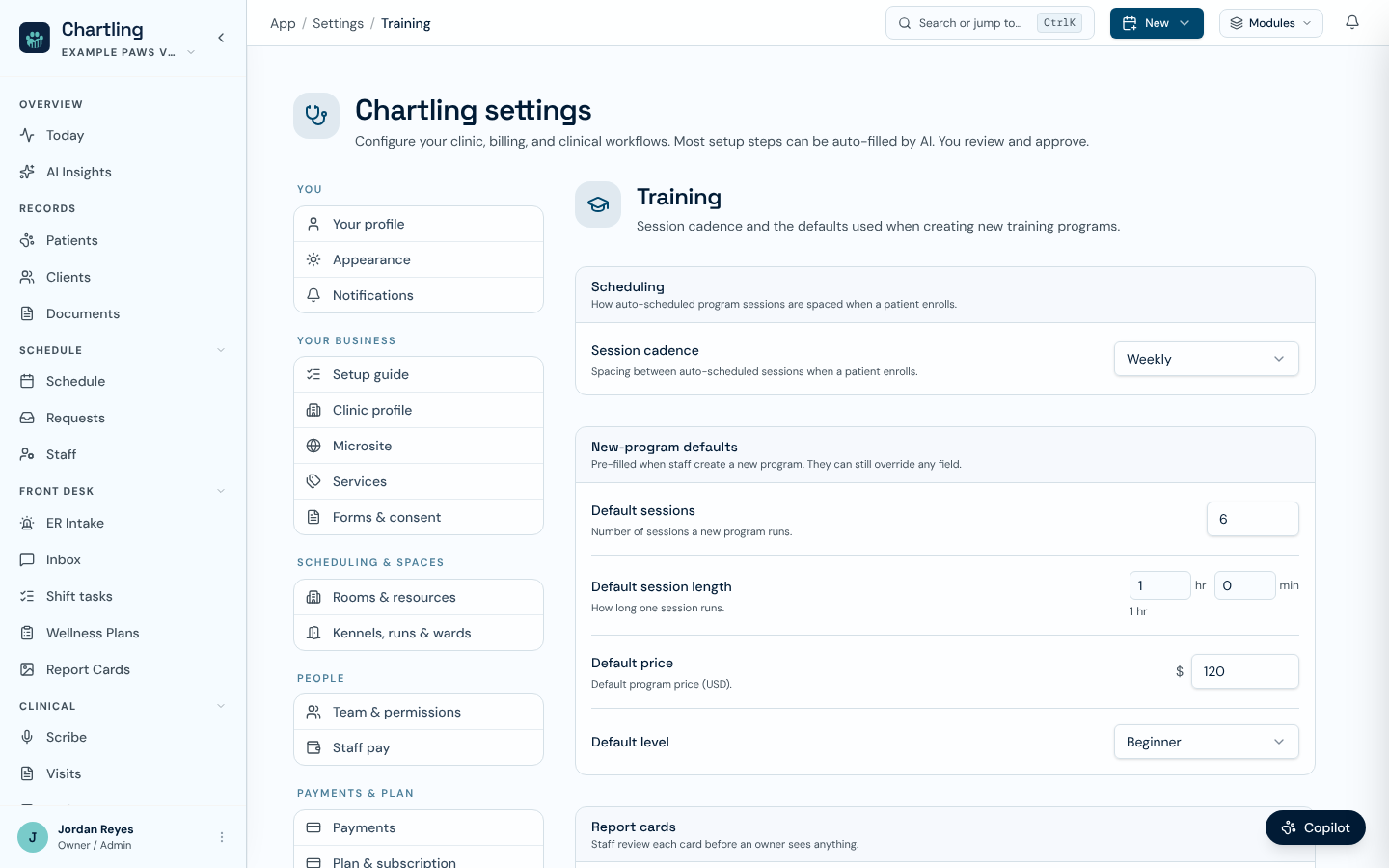
Settings, Training: cadence and new-program defaults (sample data)
-
Enroll the patient
Enroll a patient in the program (
training.enroll). Chartling auto-schedules the program's sessions on your clinic's weekly/biweekly cadence, so you don't have to book each one by hand. You can still adjust individual sessions afterward. -
Sign the training agreement
A signed training agreement is required before the first session can be completed. It is the same release-agreement pattern used by grooming. Collect it from the enrollment before class starts.
Lesson plan (curriculum)
On a program's page, the Curriculum card holds an ordered lesson plan, one lesson per session. Click Add curriculum (or Edit curriculum) and give each lesson a title, plus an optional objective, skills, and homework. Needs training.manage. Each enrollment's sessions then show their lesson, the homework prefills when you complete the session, and the lesson feeds the AI session plan. Owners see the lessons on their portal training page.
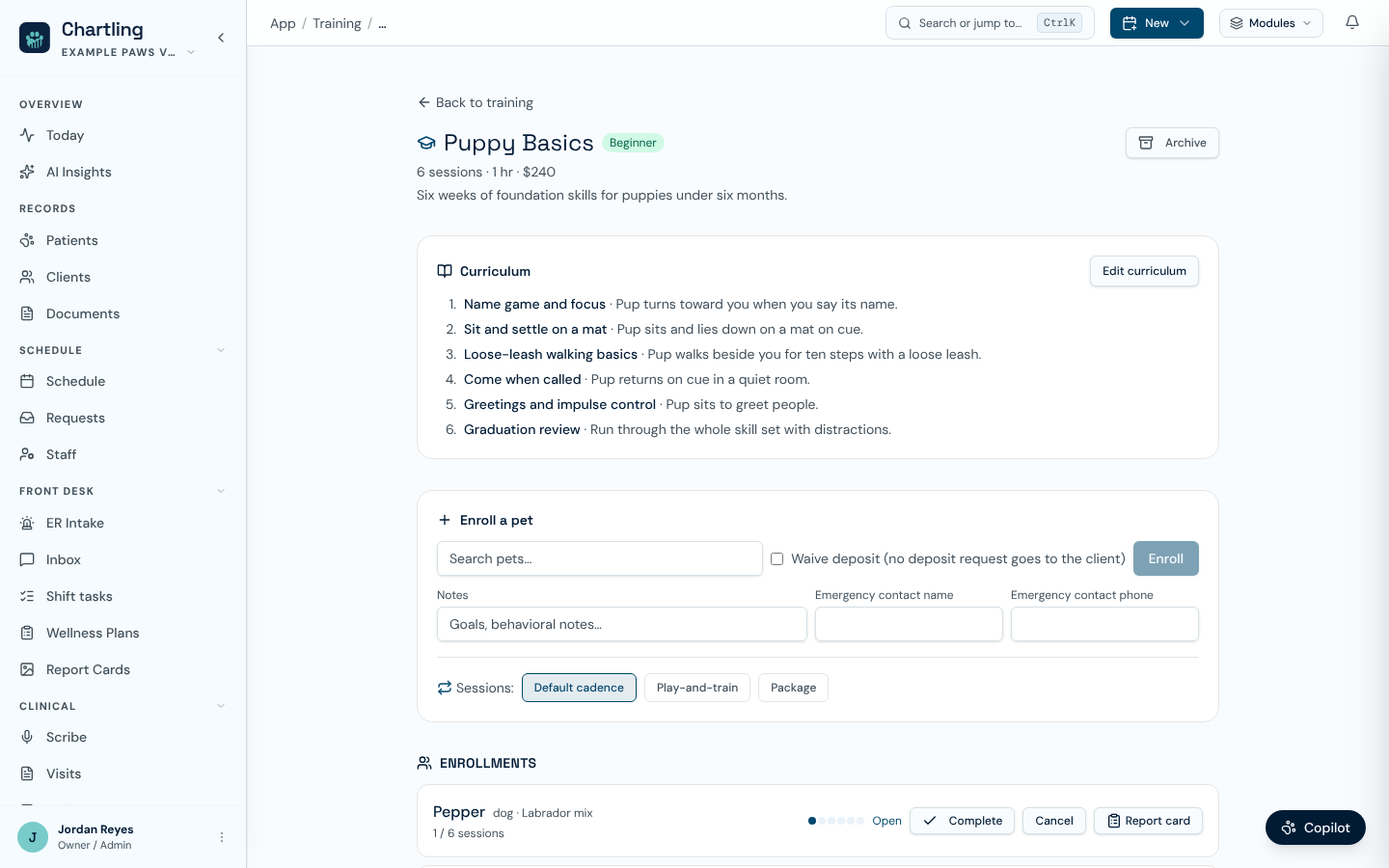
A program with a lesson plan (sample data)
Group classes
For cohorts that meet together, use Training → Group Classes. A group class runs one of your programs with a capacity, a trainer, and a roster. When the roster is full, the next pet is added to a waitlist instead. Open a class to set its meeting schedule (weekdays, how often, and how many sessions), which creates the whole series at once. Edit the class to change its name, capacity, trainer, or status.
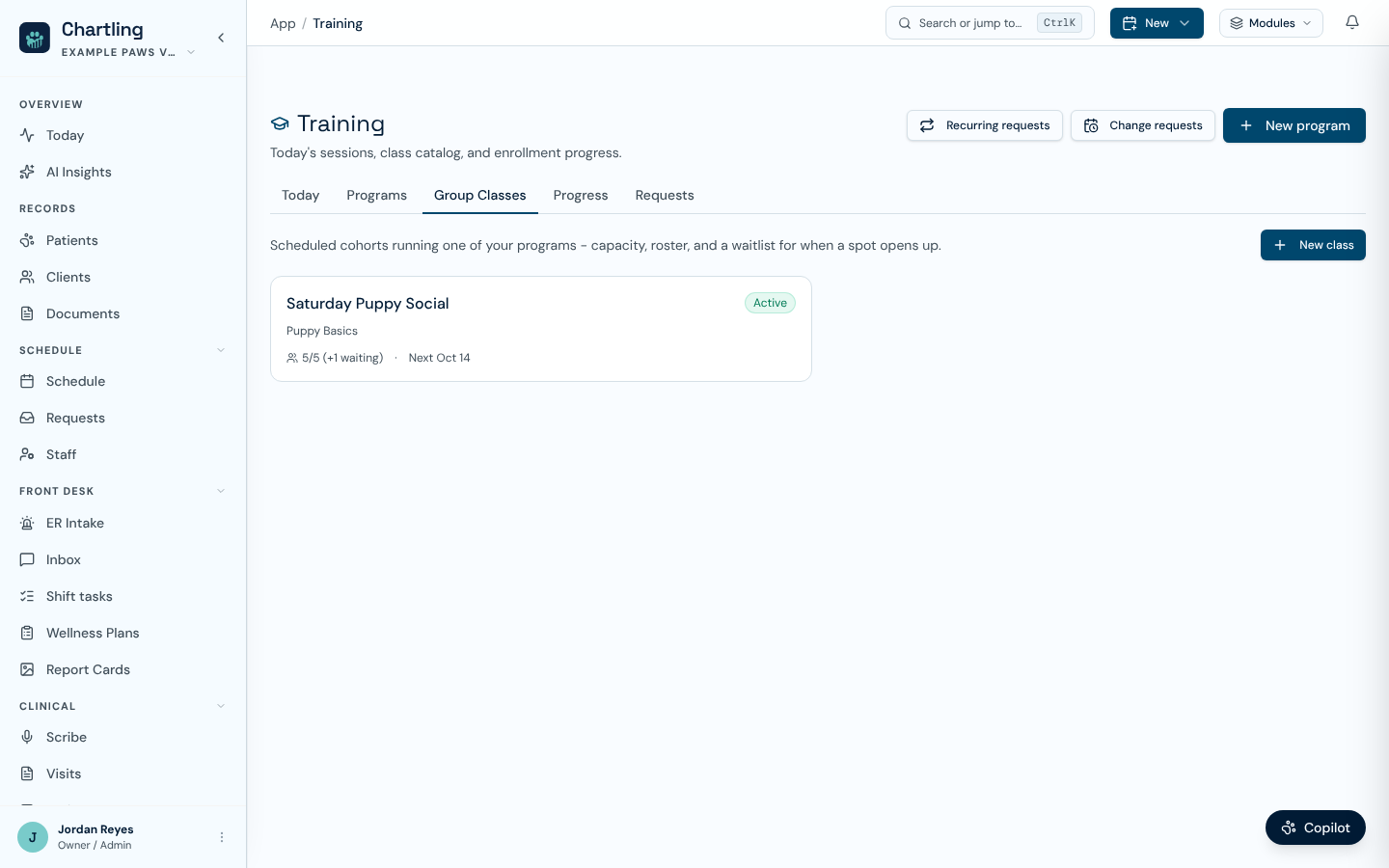
Group Classes (sample data)
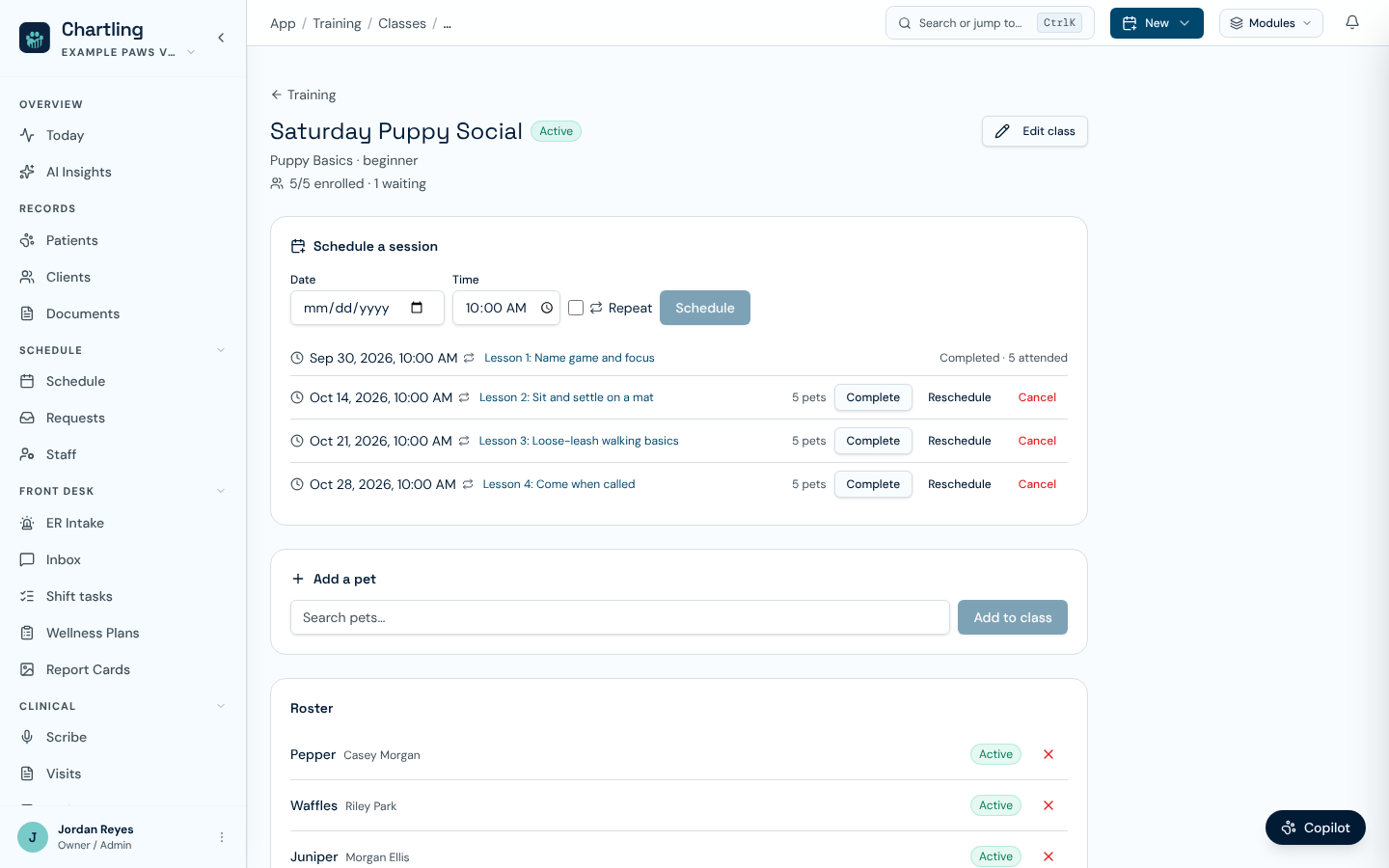
A class with its sessions and roster (sample data)
- Take attendance. Completing a class session lists every pet on the roster, all checked by default. Uncheck the pets that did not come and they are recorded as no-shows. Add session notes and homework for the whole meeting in the same step.
- Reschedule or cancel. Move one meeting to a new time, or cancel it with an optional reason such as "Trainer out sick".
- Remove a pet. Take a pet off the roster, and optionally cancel its enrollment at the same time.
- Training agreement. A pet whose agreement is not signed is not completed with the rest. Chartling tells you which pets were skipped. Finish them from their enrollment once the agreement is signed.
Recording session progress
-
Run the session
Open the scheduled session from the patient's profile or the Training module.
-
Complete it with notes
Completing a session records session notes and homework notes for the owner in one step. There's no separate "start" and "record progress" click.
-
Enrollment goals
Trainers can update the enrollment's goals directly, independent of any single session, which tracks what the whole program is working toward not just one class.
Makeup sessions
Makeups are off until you turn them on under Settings → Training → Makeups. Choose Offer makeup sessions, then set how much notice a client needs to earn one (cancelling at least that far ahead; 0 means any cancellation counts), whether no-shows earn a makeup, the most makeups one enrollment can use (0 means no limit), and the makeup deadline in days after the missed session (0 means no deadline). A session missed before you switched the policy on is treated as history and is never counted as owed.
When you add a session to an enrollment, you can pick which missed session it makes up. If it breaks your rules, Chartling warns you and asks for a reason, and you can still add it. Owners see the policy, and how many makeups they have left to schedule, on their portal training page.
Deposits for online requests
Under Settings → Training → Deposit, turn on Require a deposit to hold an online enrollment request until the client pays. The request only reaches your Requests tab once the deposit clears. Choose a flat amount or a percent of the program price (the minimum charge is $0.50). The same page has refund policies for If a client cancels and If you decline the request, the same options Boarding and Daycare use. The deposit terms show on the public training booking page.
Enrollment requests from online booking
When an owner requests training from the public booking page, it lands as a pending request on the Training → Requests tab (the notification bell also links to a standalone Training requests page) rather than enrolling the patient automatically. Confirm a request and click Enroll to open the program enrollment form with the pet's name prefilled and the request linked, or decline it with a reason sent back to the owner.
Completing a program & taking payment
Click Complete next to an enrollment (training.enroll) once its sessions are done (Chartling warns you if some aren't). This opens Complete program and bill, the same checkout review screen Boarding, Daycare, Grooming, and clinic appointments use: it shows the charges on the program's bill, lets you edit a line, add or remove one, or apply a one-time discount, then choose how to collect what's left: charge the card on file, take payment now at the counter, email the client a bill to pay, or leave it open on the bill. A program with no bill yet just completes with no payment step.
Cancelling an enrollment
To withdraw a patient from a program entirely, not just mark one session a no-show, click Cancel next to the enrollment (training.enroll) and confirm, with an optional reason. This cancels every session still to come; sessions already completed or marked a no-show are left as they happened. Any deposit is refunded or queued for refund per your clinic's training policy, the same shared handling boarding and grooming cancellations use. A cancelled enrollment leaves the active list, and the patient is free to enroll in the same program again. For a board-and-train program, the linked boarding stay is cancelled too, unless the pet has already checked in. In that case the stay is left for you to check out.
What owners see
Training sessions and enrollments appear in the owner portal. Each enrollment has a progress page showing sessions completed, the Lessons in the program, Homework from completed sessions, Upcoming sessions, Goals with milestones, and your makeup policy. Internal session notes are never shown to owners. A no-show is tracked distinctly from a cancellation, so your records reflect what actually happened at class time.
Report cards
Like Boarding, Daycare, and Grooming, Training sessions support report cards as a lighter-weight alternative to full session notes: a note, demeanor tags, and photos. Publish to portal shares it with no notification; Send to owner publishes and notifies by email, SMS, or both.
When you complete a session or a group class, Chartling drafts a report card for each pet from the mood, progress, skills, and homework you recorded. The draft is visible to staff only until you add photos and a comment and publish it. Turn this off under Settings → Training → Report cards → Draft a report card on completion. It needs report cards on your plan.
| Field | Notes |
|---|---|
| Program name | Shown to owners in the portal and on invoices |
| Session count | Total sessions in the program |
| Level | Beginner, intermediate, advanced, reactive, or agility |
| Cadence | Weekly or biweekly: drives auto-scheduling of the program's sessions |
| Program price | A single flat price for the whole program |
| Session notes / homework notes | Recorded together when a session is completed |
FAQ
Yes. A patient can have separate active enrollments in different programs. Enrolling in the same program twice while an active enrollment already exists just returns the existing one rather than creating a duplicate.
Yes. A program isn't tied to one trainer. Individual sessions can be assigned to whichever trainer is available when they're scheduled.
Mark it as a no-show rather than cancelling it, so your records distinguish "never showed up" from "cancelled ahead of time."
Use Cancel enrollment on the enrollment, not a per-session no-show. It cancels every session still to come and resolves the deposit, so remaining classes don't sit orphaned on the calendar.
No. One signed training agreement per enrollment is what gates completing that enrollment's sessions, not a fresh signature every class.