Settings
Configure your business profile, units, communications, and integrations.
On this page
Business profile
Go to Settings → Clinic profile (called Workspace profile for boarding, daycare, grooming, or training businesses) to set your business name, address, phone number, website, and logo. This guide calls it the business profile. This information appears on invoices, discharge summaries, and the owner portal.
| Field | Where it appears |
|---|---|
| Business name | Invoices, owner portal header, SMS messages |
| Address | Invoices, booking page |
| Phone number | Invoices, owner portal, booking page |
| Logo | Invoices, owner portal, booking page |
| Website | Owner portal footer |
Unit preferences
Chartling stores all weights in kilograms and distances in kilometers internally. The unit you see and type in is a per-business preference. Set it under Settings → Clinic profile (Weight units and Distance units). It changes how weights and distances are shown and entered for all staff, and in the owner portal.
| Setting | Options | Affects |
|---|---|---|
| Weight units | Pounds (lb, default) or kilograms (kg) | How patient weights are shown and entered |
| Distance units | Miles (mi, default) or kilometers (km) | The service radius for mobile services |
The stored value (kg/km) is always preserved. Changing the display unit only changes how the value is shown. A 32.1 kg patient stays 32.1 kg; with pounds selected Chartling shows "70.8 lb (32.1 kg)", and with kilograms selected it shows "32.1 kg (70.8 lb)". Weights you type are converted from your unit, so enter them in the unit you have selected.
Time zone
Set your business's time zone on Settings → Clinic profile. On the Profile tab, the Time zone field sits below Weight units and Distance units. Pick from the common zones at the top of the list, or from the full list below it, and click Save. The time zone saves on its own, so you do not need to save the rest of the profile with it. Changing it needs the settings.practice.write permission. Everyone else sees the field but cannot edit it.
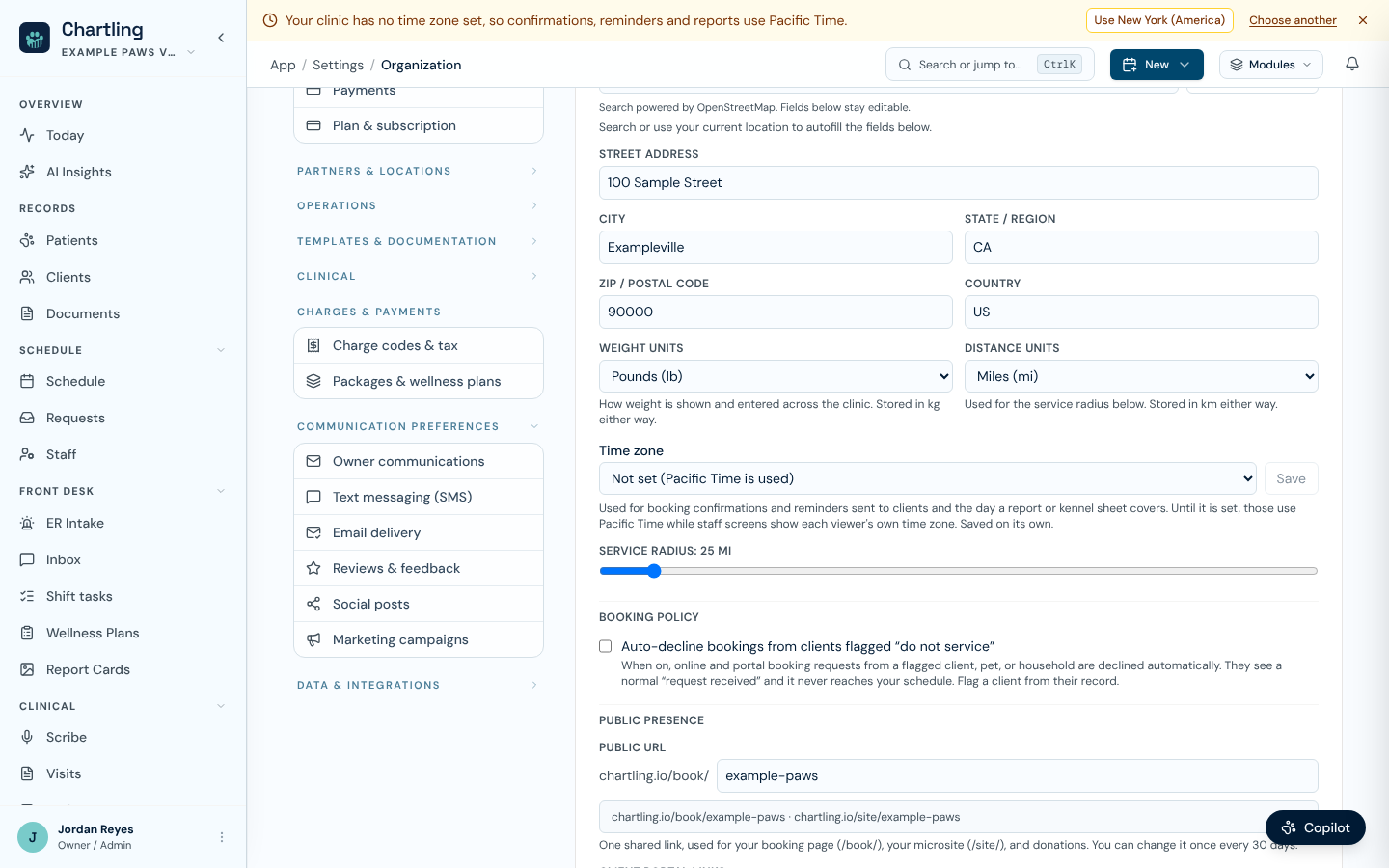
The Time zone field and the no-time-zone banner (sample data)
The time zone decides the clock used for booking confirmations and reminders sent to clients, and for the day a report or kennel sheet covers. Staff screens show each person's own local time regardless.
A business with no time zone saved sends confirmations and reminders, and cuts its reports and kennel days, on Pacific Time. Staff who hold settings.practice.write see an amber banner across the top of the app saying so. Use followed by your browser's zone saves that zone in one click, and Choose another opens the profile page. The dismiss button hides the banner in that browser only, and it returns elsewhere until a zone is saved.
SMS communications
Texts send from a shared Chartling number by default, with no setup required to start sending reminders. Go to Settings → Text messaging (SMS) to connect your own toll-free number instead, so messages show your business's own identity. If you already have a toll-free number verified in a Twilio account, paste it in directly (with an optional Messaging Service SID) and it's usable immediately; buying and verifying a new number through Chartling is being rolled out and may not be available on every account yet. Disconnecting falls back to the shared number rather than turning SMS off.
Replies are two-way: an owner's text back comes into the same unified Inbox as email and portal messages, and staff with inbox.reply can respond from there.
The same Settings → Text messaging (SMS) page also has an Inbound calls section (Operations and Practice tiers) for answering calls to your business's number. See SMS & reminders for the full setup.
Integrations
| Integration | What it does | Setup |
|---|---|---|
| Google Calendar | One-way sync of the appointment schedule to staff Google Calendars | Settings → Data & integrations → Integrations → Connect |
| PIMS connection (ezyVet, Provet Cloud, Vetspire) | Pulls patients and appointments from your existing PIMS (Intelligence and Practice tiers). Signed-note write-back isn't available yet; use Copy full SOAP | Settings → Data & integrations → Integrations → enter API credentials |
| QuickBooks Online or Xero | Posts daily revenue as a journal entry; QuickBooks also sends staff worked hours for payroll | Settings → Data & integrations → Integrations → Connect QuickBooks or Xero, then Settings → Accounting to map accounts |
| Xero | Posts daily revenue, tax and payments as a journal entry (daily posting only; time cards are QuickBooks only) | Settings → Data & integrations → Integrations → Connect Xero, then Settings → Accounting to map accounts |
Digitail, IDEXX Neo, Covetrus Pulse, Merlin and Teleos, and some other PIMS systems have a waitlist and are not live yet: use Join waitlist on the integrations page to tell us yours. Other major PIMS systems (Cornerstone, AVImark, ImproMed, and others) run on-premise with no public API, so there is no automatic connection: copy each signed note across with Copy full SOAP. The integrations page shows a Request support option for these, which tells us your clinic needs one. IDEXX VetConnect PLUS is not a PIMS integration here: it's the same self-serve diagnostics feed described on the Lab orders page, and it's available today with no extra setup.
Entering your PIMS credentials lets Chartling pull patients and appointments. Writing signed notes back into your PIMS isn't available yet, so use Copy full SOAP to paste each signed note into the patient record.
QuickBooks and Xero accounting
Once QuickBooks or Xero is connected, go to Settings → Accounting (permission settings.integrations.write) to set it up. A clinic can connect both ledgers side by side. This is two independent tools sharing one page. Using one doesn't require the other:
- Account mapping & daily posting: map each kind of charge (revenue), payment method (deposit), and sales tax to the matching account in QuickBooks or Xero. Once every row is mapped, pick a day on the Post a day panel to preview the exact journal entry (one line per account, debits and credits) before sending it. A day can only be posted once; posting again just shows you the entry that already went through.
- Time cards (Operations and Practice tiers, feature
scheduling, QuickBooks only): link each staff member to their QuickBooks employee record, then push a pay period's worked hours as QuickBooks time activity so payroll doesn't have to be re-keyed. Chartling sends plain worked time only. It holds no pay rates and applies no overtime, holiday, or shift-differential rule, so apply those in QuickBooks before running payroll. Xero doesn't have a time cards equivalent today.
Service modules
If your business offers boarding, daycare, grooming, or training, each module has its own settings page. Go to Settings → [Module name] to configure capacity, rates, and agreements. Each of those pages also has a Custom booking questions section (permission settings.practice.write) where you can add your own extra questions ("Does your dog have separation anxiety?", "Preferred groomer?") to that module's public online booking form. Add up to 20, per service, with a short label, a type (text, multi-line text, checkbox, or a dropdown of options you define), and whether it's required. A submitted answer is captured on the booking request exactly as asked; editing or removing a question later never changes what an owner already answered.
Public microsite
Every clinic gets a branded public page at chartling.io/site/your-slug, available on every plan (permission settings.microsite.write). Configure it from Settings → Microsite, which is a set of tabs: Page (name, tagline, slug, and whether the page is published), Services, Hours, Team, Gallery, FAQ, Links, Reviews, Payments, and Donations. Reviews pulled in from a connected profile can be approved or hidden for display; you can also add a manual testimonial by hand.
Shift checklists
Closing, cleaning, and other recurring shift checklists are built and run from the Routines tab under Shift tasks. See Checklists for templates, shift splits, sign-off, and who can do what.
Multi-location
Practice-tier clinics with more than one physical location can link them into a network from Settings → Network. Networked locations stay org-isolated for clinical and billing data. This is about giving staff and management visibility across sister locations (shared team directory, cross-location scheduling context), not merging patient records between clinics.
Importing from your old system
On the Operations and Practice tiers (not Intelligence), Settings → Import data gives you an AI-assisted migration tool: upload a spreadsheet, PDF export, or document from your previous system, and Chartling parses it into draft patient, client, and inventory records. Nothing is written to your live data until you review the parsed results and commit them. It's a guided review-and-confirm flow, not an instant one-click swap. Larger migrations (a full PIMS export) are best done with support's help; contact support@chartling.io to get started on a full migration.
Other settings pages
Settings is grouped by area, and the overview page lists everything your plan and role can open. These pages are not covered elsewhere in the docs.
| Page | What it does |
|---|---|
| Appearance | Your own display preferences: dark mode, font size, contrast, and color vision. |
| Setup guide | Review the recommended setup steps and return to guided onboarding. |
| Rooms & resources | Rooms, locations, equipment, and bookable providers for the calendar. Needs scheduling on your plan (Operations or Practice). |
| Surgery Rx protocols | Default take-home prescriptions that are pre-filled when a procedure is completed. Shown in clinic workspaces. |
| AI writing styles | Not forms. Upload sample documents to teach the AI your format for report cards, discharges, and notes. |
| Reviews & feedback | Ask owners to rate you after a visit and route happy clients to your review page. Needs client communications on your plan (Operations or Practice). |
| Social posts | Compose a post once and share it to each network. Needs the social.publish permission. |
| Document library | Files you uploaded for AI import, with how often each has been reused. |
| Data quality | Patient records with values that look mistyped or in the wrong field, so you can review and correct them in bulk. |
FAQ
Yes. The stored value is always in kg; changing the display unit just changes the label. No data is converted or lost. Dosing calculations always use kg regardless of display unit.
Nothing to set up. SMS reminders already send from a shared Chartling number. If you'd rather messages show your own clinic's identity, go to Settings → Text messaging (SMS) and connect a toll-free number: if you already have one verified in your own Twilio console, connect it there directly, or contact support@chartling.io. Buying and verifying a new number in-app is rolling out gradually.
Most settings are Admin-only. Non-admin staff can view (but not edit) some settings. Sensitive areas (billing, integrations, team management) are Admin-only with no read access for other packs.