Patients
Add and manage every animal in your clinic.
Every visit, prescription, and invoice in Chartling is attached to a patient record. Patients are linked to one or more client (owner) accounts, and their full history (visits, medications, vaccines, weight) lives on their profile.
Adding a new patient
-
Search first
From any screen, use the global search (top of the page) to look up the patient by name before creating a new record. Duplicate records are the most common data problem in PIMS, and a quick search prevents them.
-
Go to Patients → New patient
Click Patients in the sidebar, then + New patient in the top-right corner.
-
Fill in the patient details
Enter the patient's name, species, breed, sex, date of birth (or estimated age), and color/markings. Microchip number is optional but recommended.
-
Enter the current weight
Weight is entered in your clinic's display unit (lb or kg depending on your settings) and stored in kg. This becomes the first entry in the patient's weight history.
-
Link to a client
Search for and select the owner. If the owner isn't in the system yet, click Create new client to add them inline. A patient can have multiple linked clients (e.g. both partners in a household).
-
Save
Click Save patient. The patient profile opens immediately. You can book an appointment or start a visit from here.
Patient profile
| Field | Notes |
|---|---|
| Name | Required. Shown on invoices, discharge summaries, and the owner portal. |
| Species | Required. Drives breed list, dosing defaults, and vaccine schedule templates. |
| Breed | Optional. Shown on records; used in clinical decision support. |
| Date of birth | Used to calculate age on visit records and reminders. Estimated DOBs are fine. |
| Sex / reproductive status | Intact male, intact female, neutered male, spayed female, unknown. |
| Weight | Stored in kg; displayed in your clinic's configured unit. Each visit can log an updated weight. |
| Color / markings | Free text. Appears on boarding and grooming records. |
| Microchip | Optional. On Intelligence and Practice tiers, click Look up registry next to the field to check which universal registry the chip is registered with and get a direct link. That confirms a chip is active or pointing an owner to the right registry to update their info. Operations tier is manual-entry only. |
Profile tabs
From the patient profile, use the tabs to navigate the record:
- Profile: species, breed, sex, date of birth, color/markings, microchip
- Medical: problem list, allergies, surgical history, and notes
- Dental: per-tooth odontogram and dental chart history (Intelligence and Practice tiers only)
- Reminders: upcoming vaccine and preventive care due dates
- Meds: all prescriptions, dispense records, and refill history
- Vaccinations: administered vaccines with lot numbers and expiry
- Services: boarding, daycare, grooming, and training activity for this patient, if your clinic runs one or more of those modules. With a single module active, the tab is labeled for that service (e.g. "Boarding") instead of "Services."
- Billing: invoice history for this patient
- History: full visit history with signed SOAPs and discharge summaries
- Documents: consent forms and signed agreements filed automatically by other workflows, plus anything staff upload directly. Click Upload to attach a scanned referral letter, a prior clinic's certificate, or any other file to this patient (requires
patient.write)
Vaccines & rabies certificates
In clinic workspaces, the Vaccinations tab shows a patient's vaccine history. Manage vaccines at the top of the tab opens the full Vaccines page, where each entry is lot-numbered and dated.
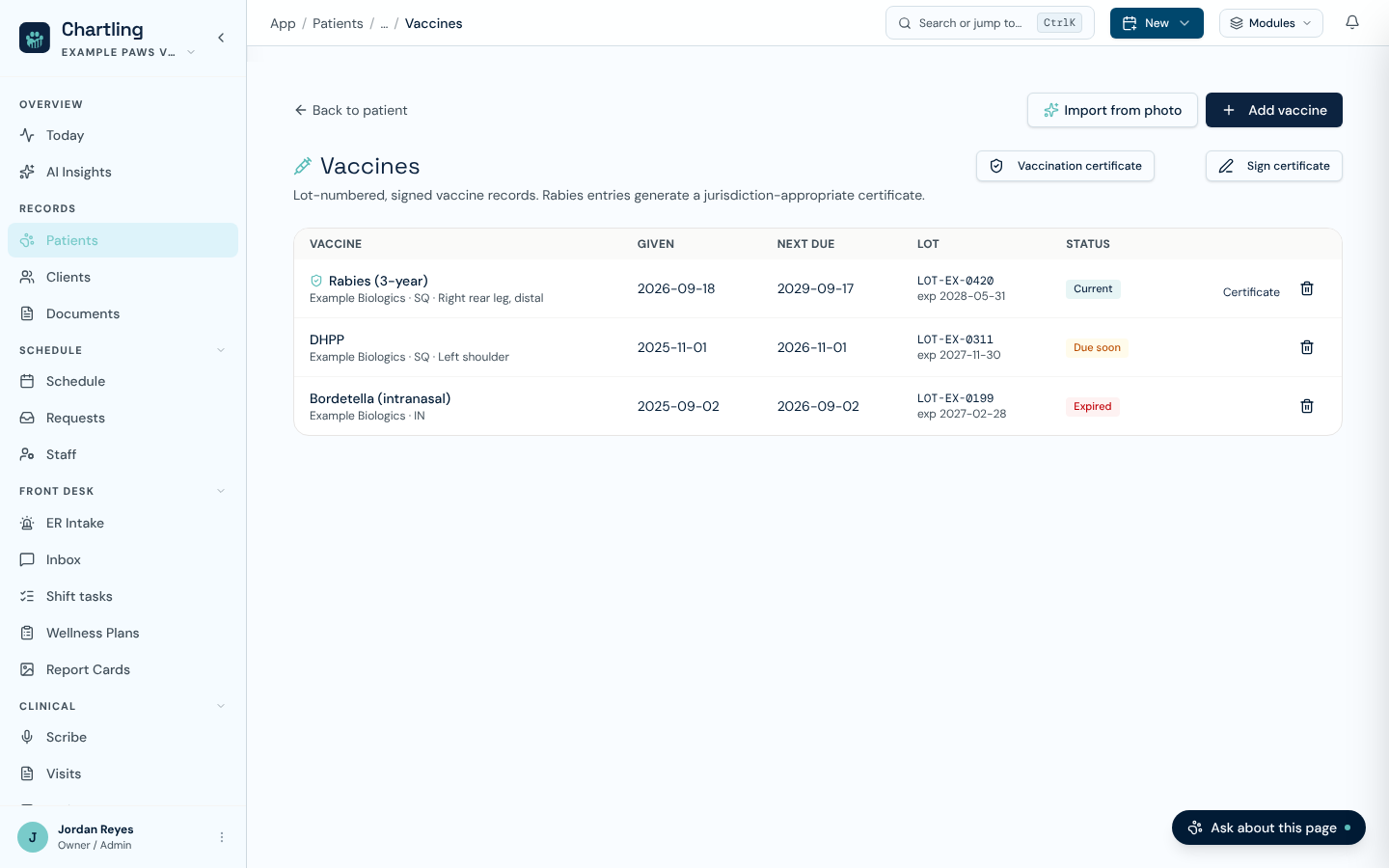
The Vaccines page (sample data)
- Add vaccine records one (requires
rx.write). Enter the vaccine type (Core, Non-core, Rabies or Other), product, manufacturer, lot and expiry, route, site, dose, the date given, the next due date and who administered it. - Import from photo reads a photo of a rabies tag, vaccine label or paper record and prefills the same form. You check the details and save. Nothing is recorded until you do.
- Each row shows a status: Logged when there is no next due date, Current, Due soon when the due date is within 30 days, or Expired. Due dates are judged in your clinic's time zone.
- Removing an entry also needs
rx.write.
Record vaccines given elsewhere
For a vaccine given by another practice, staff without rx.write who hold owner.vaccine.verify use Record vaccines instead. Boarding, daycare, grooming and training workspaces see it on the pet's Vaccinations tab and on the Vaccines page (they see All vaccine records where a clinic sees Manage vaccines), and the same dialog opens from the boarding stay, the daycare roster and the owner uploads queue. Each vaccine in the list has its own type, name, date given, next due date, rabies certificate duration and notes. Choose Add another vaccine for a second row (it starts on the previous row's dates), and Scan or upload record fills one row per vaccine found on a certificate. The button reads Save vaccine, or Save N vaccines for several, and they all save together. The tab also lists this pet's owner uploads still waiting to be entered, and each record links back to the file it came from. These workspaces have no lot, route or vet fields, no Sign certificate and no NASPHV rabies form; the PDF button reads Vaccine history PDF.
Rabies certificate
Choosing the Rabies type adds the fields a certificate needs: Vet license #, Rabies tag #, Duration (1-year or 3-year) and Certificate jurisdiction. The jurisdiction picks the layout: United States (NASPHV Form 51), or one of the Canadian provinces and territories (Ontario, British Columbia, Alberta, Québec, Manitoba, Saskatchewan, Nova Scotia, New Brunswick, Newfoundland & Labrador, Prince Edward Island, Yukon, Northwest Territories, Nunavut).
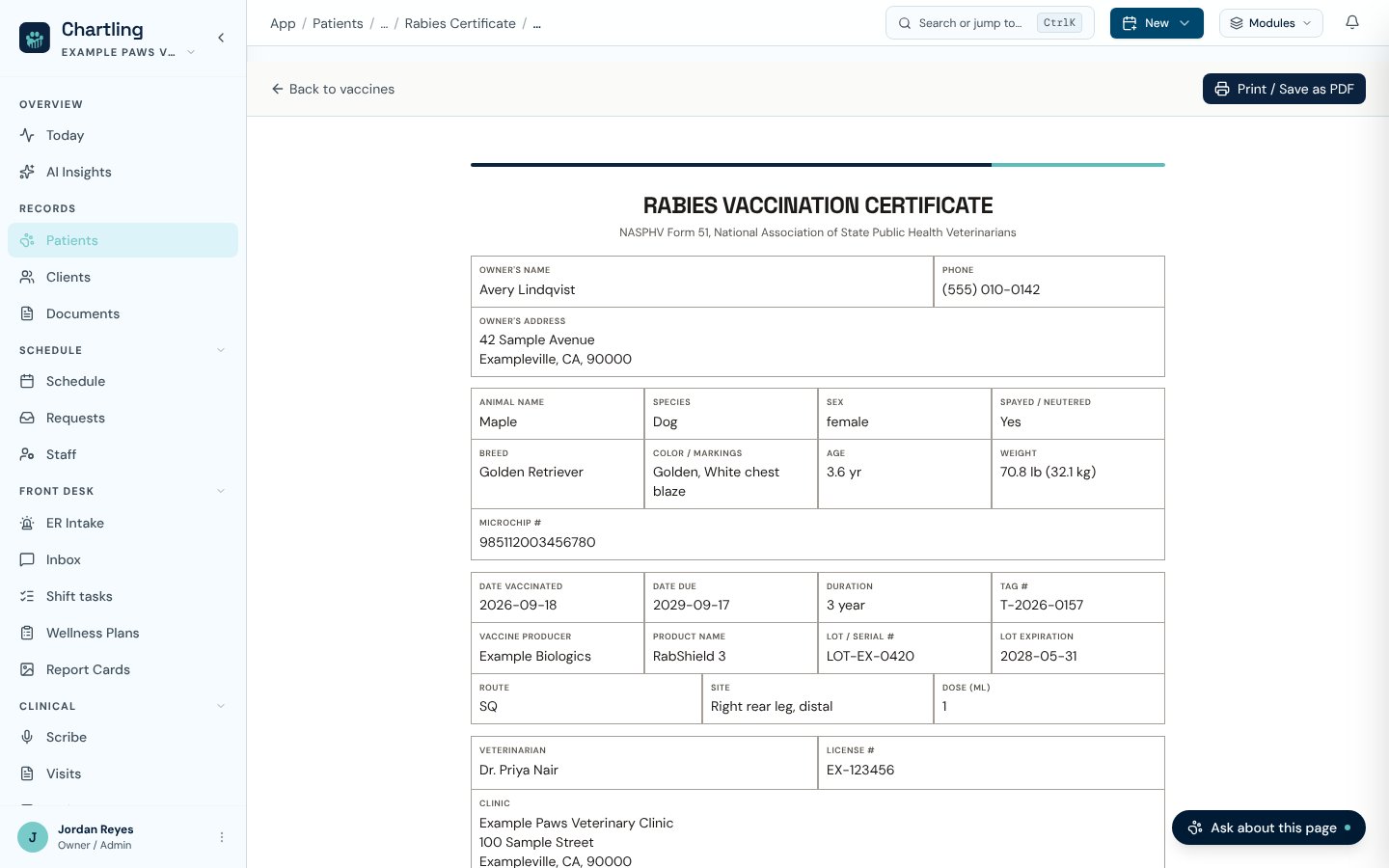
A rabies certificate, ready to print (sample data)
Every rabies row has a Certificate button. It opens a printable certificate in a new tab with your clinic's name, address and brand colors at the top, then the owner, the animal (with weight shown in your clinic's unit), the vaccine, lot and expiry, the dates, the tag number, the vet and a Veterinarian Signature line. Your browser's print window opens automatically. Use Print / Save as PDF to print again or save a copy, and Back to vaccines to return. Opening a certificate needs patient.read. Other vaccine types do not get the button.
Check the vet name, license number and tag number before you print. A field left empty on the entry prints as a dash, and the signature line is for the veterinarian to sign by hand.
Full vaccination certificate
Separately, Vaccination certificate at the top of the Vaccines page downloads a PDF of the patient's whole vaccine history, the document boarding facilities, groomers and travel authorities usually ask for. It also files a copy on the patient's Documents tab so you can reissue it later (requires visit.read). Staff with visit.sign also see Sign certificate: add your name, credentials and signature, and the copy on the record then carries your signature.
Patient risk scoring
On Intelligence and Practice tiers, the patient dashboard shows an AI-generated risk summary: patterns pulled from the patient's own vitals, lab trends, and visit history that may warrant closer attention (e.g. a weight trending down across visits, or a lab value drifting toward an abnormal range). It's a summary layer on top of the same data behind clinical decision support, not a separate score you configure. There's nothing to turn on. It's informational only and never blocks or changes anything about the patient's chart.
Inpatient whiteboard
For hospitalized patients, the Whiteboard (Intelligence and Practice tiers, inpatient.manage permission) gives you an at-a-glance board across every admitted patient: cage/run assignment, treatment orders due, and status, in one view instead of opening each chart individually. Admit a patient to the whiteboard from their visit or profile; from there staff can create treatment orders, mark them complete as the shift progresses, and transfer or discharge the patient when they're ready to go home. It's built for the same continuous-care use case as boarding, but for medical hospitalization rather than a boarding stay. The two are separate modules.
Patient status
A patient's status can be set to Active, Inactive, or Deceased. By default the patient list shows only active patients. Use the status filter to include inactive or deceased records.
- Active: default for all patients
- Inactive: for patients who haven't been seen in a long time or whose owners have moved away. Records are preserved; the patient just doesn't appear in default search results.
- Deceased: marks the record clearly without deleting anything. A closure reason, date, and note can be recorded.
Chartling does not allow permanent deletion of patient records. Setting a patient to Inactive or Deceased archives them. All clinical history, invoices, and signed documents are preserved.
Merging duplicate patients
If two records turn out to be the same patient, staff with patient.write can fold one into the other directly. This doesn't require support. Open the duplicate's profile, click Merge duplicate, and search for the record to keep. Everything the duplicate owns (visits, medications, labs, invoices, documents) moves onto the surviving record, and the duplicate is removed. From the Patients list, you can also select several rows and use Merge selected to fold multiple duplicates into one survivor at once.
The merge dialog suggests which record to keep and shows both side by side. If the two records differ on identity details (species, breed or owner record), it lists the differences under These look like two different patients and keeps the confirm button disabled until you tick I've checked: these are the same patient. When two records share a name, the dialog adds the owner and created date so you can tell them apart, for example "Merge Stella (first owner) into Stella (second owner)".
A merge re-keys the duplicate's records onto the survivor and removes the duplicate. It doesn't edit or re-sign any clinical content in the process, but it can't be undone from the UI. Confirm you've picked the correct survivor before merging.
FAQ
Yes. Go to the patient profile → Edit. Changing species will update the breed options but won't alter existing visit records or vaccine history.
Dosing calculations always use kilograms, regardless of your clinic's display unit. If your clinic displays weights in lb, the scribe and dosing fields still calculate in kg behind the scenes.
On the patient profile, go to Linked clients and add additional owners. Both will receive reminder communications and can access the patient via the owner portal if they've been invited.
Yes. Anyone with patient.write can do this themselves; no need to contact support. From the duplicate's profile, click Merge duplicate and choose the record to keep, or select multiple rows on the Patients list and use Merge selected. Everything the duplicate owns moves onto the survivor and the duplicate is removed. See Merging duplicate patients above.